Want to open pinned apps without clicking?
✅ Press Win + 1 to 9 to open the corresponding taskbar app
Example: Win + 1 opens the first pinned app, Win + 2 the second, and so on.
It’s lightning-fast and saves time during repetitive tasks.
Perfect for power users and efficient workflows.
Try it once — you’ll be hooked!
#TaskbarTips #KeyboardShortcuts #ShiftTips
You May Read This
-
ShiftTips #031: Open Task View in Windows
Win + Tab opens Task View in Windows, displaying all open windows and virtual desktops for easy navigation and multitasking across applications.
-
ShiftTips #034: Open the Magnifier Tool
Press Win + Plus (+) to open Magnifier
Zoom in on text, buttons, or design elements. -
ShiftTips #014: Open Emoji Keyboard in Windows
Win + . (period) is a Windows keyboard shortcut that opens the emoji picker, allowing users to quickly insert emojis, symbols, or special characters into text fields.
-
✅ ShiftTips #054: Open Programs as Admin via Search
Open apps with admin privileges without right-clicking.
-
✅ ShiftTips #055: Highlight the First Search Result of Browser
Speed through Google search results without clicking.
-
10 Proven Methods To Speed Up Slow Windows PC
Is your Windows PC getting slower day by day? Do programs take forever to open, startup feels like a decade, […]

Popular Posts

10 Proven Methods To Speed Up Slow Windows PC
Is your Windows PC getting slower day by day? Do programs take forever to open, startup feels like a decade, and even typing lags?
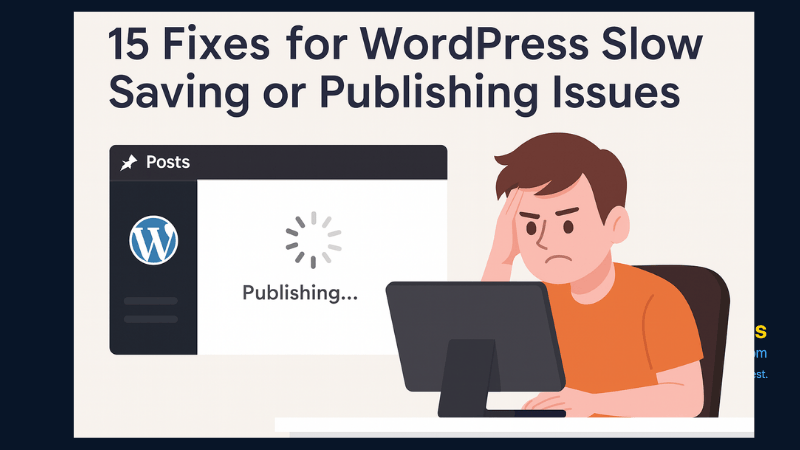
15 Expert Reasons & Fixes for Why WordPress Is Slow While Saving or Publishing Posts
In today’s digital world, your smartphone is not just a communication device—it’s your wallet, identity card, camera, and personal diary.