In today’s digital age, everyone interacts with technology daily. Whether you’re a student, a working professional, or someone learning tech for fun, understanding common tech beginner mistakes can help you avoid unnecessary frustration. These mistakes may seem small at first, but they can lead to bigger problems like data loss, security issues, or wasted time and money.
So, what are the most common tech beginner mistakes, and how can you prevent them? Let’s explore!
1. Ignoring Software Updates
One of the biggest tech beginner mistakes is ignoring system or software updates. Many think updates are just new features, but in reality, they often fix critical bugs or patch security holes.
🔍 Why does this matter?
If you’re running outdated software, you’re more vulnerable to cyberattacks. Hackers often target known vulnerabilities that updates would have fixed.
✅ What to do instead:
Enable automatic updates or schedule time weekly to update your apps, operating systems, and antivirus software.
2. Using Weak or Repetitive Passwords
Creating simple or the same password for multiple accounts is a huge red flag. It’s one of the easiest tech beginner mistakes to make and one of the most dangerous.
🔍 Which mistakes to avoid?
Passwords like “123456” or “password” are easy to guess. Reusing them across multiple platforms means if one account gets hacked, all your accounts are at risk.
✅ Solution:
Use strong, unique passwords. Better yet, try a password manager like Bitwarden, LastPass, or 1Password.

What is RAM and Why it Matters: 10 Must-Known Facts
In this guide, we’ll break it down in a simple way about what is RAM and why it matters is something many people don’t fully understand.
3. Skipping Backups
Many beginners don’t realize the importance of backing up their data until it’s too late. Whether it’s photos, work files, or system data, failing to back up is a common tech beginner mistake.
🔍 How risky is it?
Very. If your device crashes, is stolen, or attacked by ransomware, all your data could vanish overnight.
✅ What’s the fix?
Use cloud storage (like Google Drive or OneDrive) or an external hard drive. Set up automated backups for extra safety.
4. Falling for Online Scams and Phishing
Phishing emails, fake websites, and pop-up ads promising free prizes—these are traps often designed to steal your data. Falling for them is a classic tech beginner mistake.
🔍 How to recognize them?
If something sounds too good to be true, it probably is. Watch for bad grammar, suspicious links, or urgent threats in emails.
✅ Tip:
Always verify the sender’s email address. Don’t click on unknown links. Use a browser extension or antivirus that flags suspicious sites.
5. Neglecting to Secure Wi-Fi Networks

Setting up Wi-Fi and forgetting to secure it properly is another common tech beginner mistake. An open or weakly protected network is a gateway for cyber intruders.
🔍 What should you secure?
Your router should have a strong password, and you should avoid using the default network name and login credentials.
✅ Best practice:
Use WPA3 security if available. Change the default router password and regularly monitor connected devices.
6. Installing Too Many Apps or Extensions
Beginners often install dozens of unnecessary apps or browser extensions without realizing they can slow down performance or even pose a security risk. It’s a subtle but impactful tech beginner mistake.
🔍 Which apps are safe?
Only install software from trusted sources. Unnecessary apps consume storage, RAM, and sometimes even spy on you.
✅ Recommendation:
Audit your device every month. Remove unused apps and disable unnecessary browser add-ons.
7. Not Learning Basic Troubleshooting
Many beginners panic at the sight of an error message. But often, tech problems are easy to fix with a little patience. Not learning basic troubleshooting is another tech beginner mistake.
🔍 What should you learn first?
How to restart devices, use Safe Mode, check Task Manager (Windows) or Activity Monitor (Mac), and reset internet routers.
✅ How this helps:
Troubleshooting basics save time and reduce dependency on others.
- What Does Shift+Delete (ShiftPlusDelete) Do? 3 Powerful Tricks to Know
 You may already know that pressing the Delete key moves files to the Recycle Bin. But what happens when you press Shift + Delete instead?
 - Top 7 Free AI Tools That Are Actually Useful in 2025
 AI is no longer a buzzword—it’s now in your browser, your apps, and your daily workflow. But not every “AI tool” is worth your time. Some are just hype, while others truly help you work smarter. In this post, we’ve listed 7 free AI tools that are actually useful in 2025—tools that will save you… Read more: Top 7 Free AI Tools That Are Actually Useful in 2025
 - 15 Powerful Hidden Windows Shortcuts You Should Know
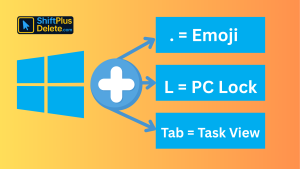 Whether you’re a casual user or a productivity enthusiast, mastering keyboard shortcuts is a game-changer. While most people know the basics like Ctrl + C or Alt + Tab, Windows is packed with lesser-known shortcuts that can seriously level up your workflow. These hidden windows shortcuts gems are not only efficient—they make using your computer… Read more: 15 Powerful Hidden Windows Shortcuts You Should Know
8. Using Public Wi-Fi Without Protection
Accessing sensitive data like emails or bank accounts on public Wi-Fi is a major tech beginner mistake that can expose you to cyberattacks.
🔍 Why is public Wi-Fi risky?
Public networks are not encrypted. Hackers can intercept your data using a method called “man-in-the-middle” attacks.
✅ What can you do?
Use a VPN (Virtual Private Network) whenever you’re on public Wi-Fi. It encrypts your data, keeping it safe from prying eyes.
9. Overlooking Device Maintenance
Dusty keyboards, dirty screens, or overheating laptops—physical neglect is often overlooked. It’s a less obvious but still serious tech beginner mistake.
🔍 Which parts need regular attention?
Fans, screens, USB ports, and batteries. Devices need cleaning and proper ventilation to work efficiently.
✅ Quick tips:
Clean your devices with microfiber cloths. Use cooling pads for laptops. Avoid using phones while charging to reduce heat stress.
10. Relying Only on Default Settings
Beginners often stick to default settings because they fear breaking something. But relying entirely on default configurations is a hidden tech beginner mistake that can reduce both performance and security.
🔍 What should you customize?
Privacy settings, notification preferences, battery usage, and browser settings.
✅ How this improves usage:
Customizing settings boosts productivity, enhances user experience, and keeps your data more secure.
Final Thoughts
Avoiding these 10 common tech beginner mistakes will not only help you use technology more efficiently but also protect your data and devices. Everyone starts somewhere, but by becoming aware of these pitfalls early, you’ll save yourself a lot of trouble in the long run.
Whether you’re setting up your first laptop, trying new apps, or just exploring the tech world, remember: the best users are not the ones who know everything but those who know how to learn and adapt.
FAQs About Tech Beginner Mistakes
1. What are the most common tech beginner mistakes?
The most common mistakes include using weak passwords, ignoring updates, skipping backups, and falling for online scams.
2. Which security mistake do tech beginners often make?
Not using strong passwords or accessing sensitive information on public Wi-Fi are two of the most frequent security-related tech beginner mistakes.
3. How can I avoid tech beginner mistakes when starting out?
Stay informed, practice safe browsing, install only trusted software, and always back up your data.
4. What happens if I ignore system updates?
Ignoring updates can leave your system vulnerable to malware, bugs, or compatibility issues. This is a critical tech beginner mistake to avoid.
5. Which tools can help beginners manage passwords safely?
Tools like Bitwarden, 1Password, or LastPass can help you generate and store strong passwords securely.
6. How often should I back up my data?
At least once a week is ideal. Set up automatic backups if possible to avoid making this tech beginner mistake.
7. What should I avoid installing on my device?
Avoid suspicious apps, toolbars, or browser extensions that promise unrealistic features. These are often malware in disguise.
You May Read This:
-
✅ ShiftTips #064: Use Focus Assist/Do Not Disturb
Avoid distractions by turning on Focus Assist (Windows) or Do Not Disturb (Mac). Keep your workflow clean and uninterrupted.
-
✅ ShiftTips #063: Take Screenshots Like a Pro
Capture your screen in seconds using built-in shortcuts on Windows or Mac. No third-party tools needed — fast, simple, and effective.
-
✅ ShiftTips #062: Turn On Night Light/Shift
Enable Night Light (Windows) or Night Shift (Mac) to cut blue light and sleep better. Simple steps make it quick and effective.
-
✅ ShiftTips #061: Boost Your Flow Master Alt+Tab Like a Ninja
Jump between apps like a ninja — no mouse needed.
-
✅ ShiftTips #059: Access Emoji Picker on ChromeOS
Add emojis on Chromebook in any text field.